HOW IT WORKS

From source material to a useful prompt.

Four clear steps, illustrated with close-up views of real PromptSnip controls—not repeated feature screenshots.

01

ADD CONTEXT

Start with what you already have.

Select content from the current webpage or switch to Image, Text, Videos or Audio. For images, you can work with a single visual or multiple references. For text workflows, you can paste text, add a PDF and provide extra instructions.
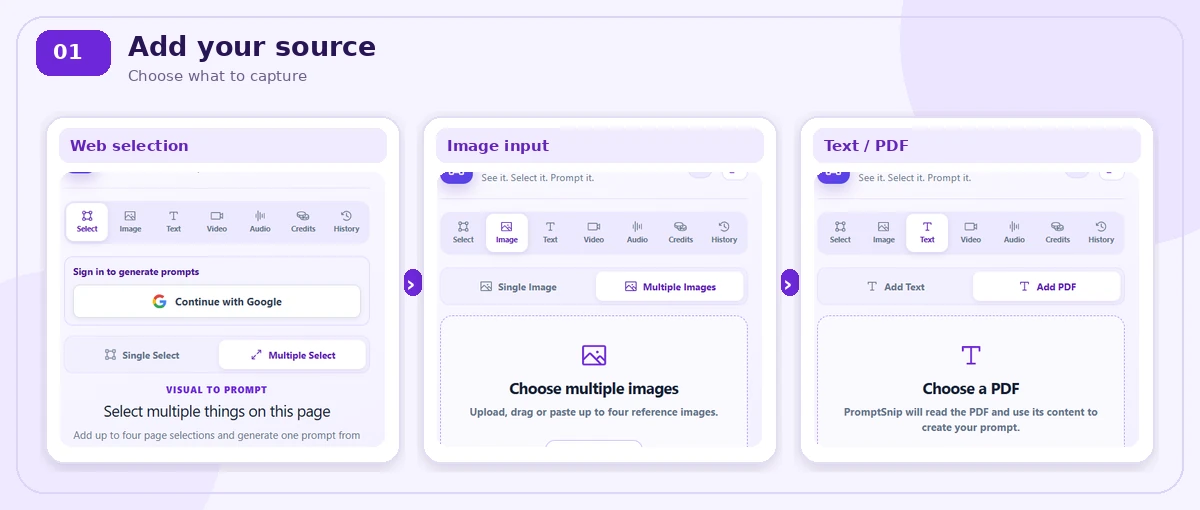
How PromptSnip accepts webpage selections, images and pasted text through its interface
02

SMART DEFAULTS

Let PromptSnip choose a relevant prompt type.

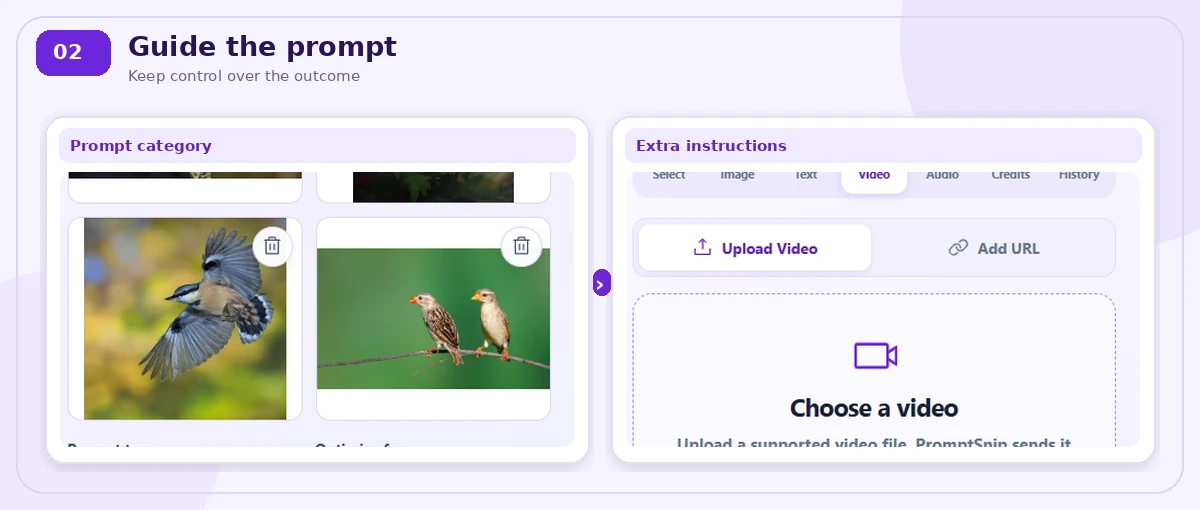
The extension can use the input to select an appropriate prompt category automatically. If your goal is different, simply change it before generating.

Focused PromptSnip prompt category and additional instructions controls
03

GENERATE & REFINE

Generate, then improve without starting over.

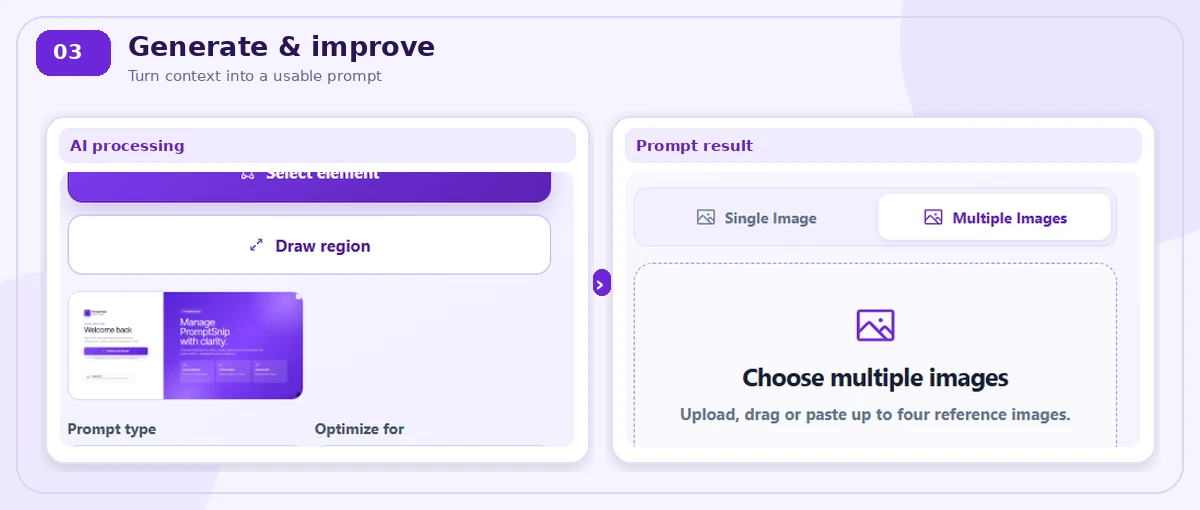
PromptSnip uses your context and instructions to build a focused result. If you want another variation, regenerate while keeping your workflow intact.

PromptSnip processing and resulting generated prompt with refinement workflow
04

USE THE RESULT

Copy it, share it or revisit it later.

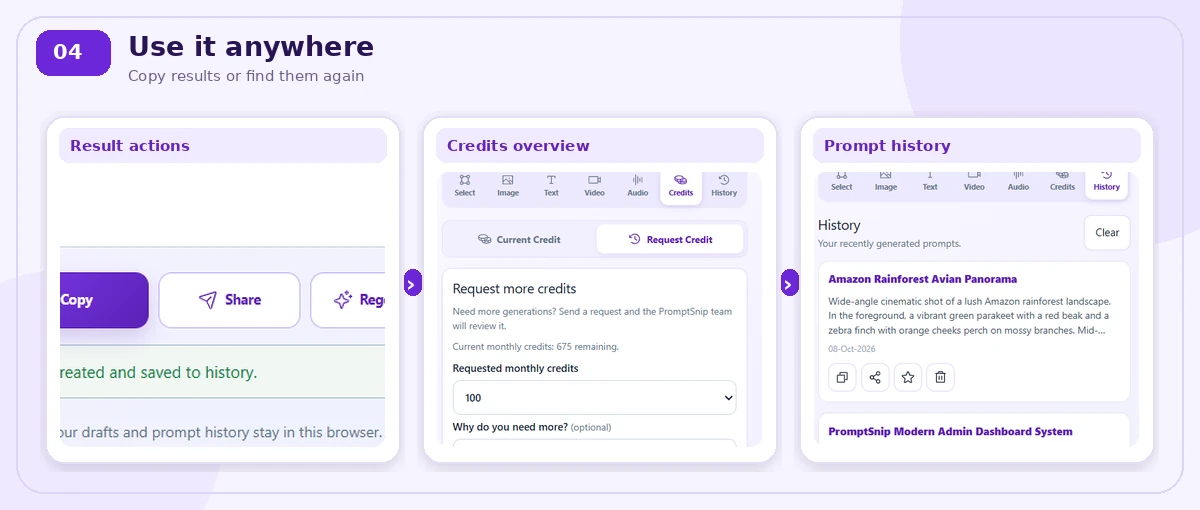
Use the finished prompt in the AI tool you prefer. History keeps previous results accessible, while the Credits tab shows your current usage clearly.

PromptSnip result actions, credits and previously saved prompt history

SIMPLE BY DESIGN

Less setup. More useful context.

PromptSnip keeps the path from source to prompt understandable from the first use.

Get PromptSnip free ↗